
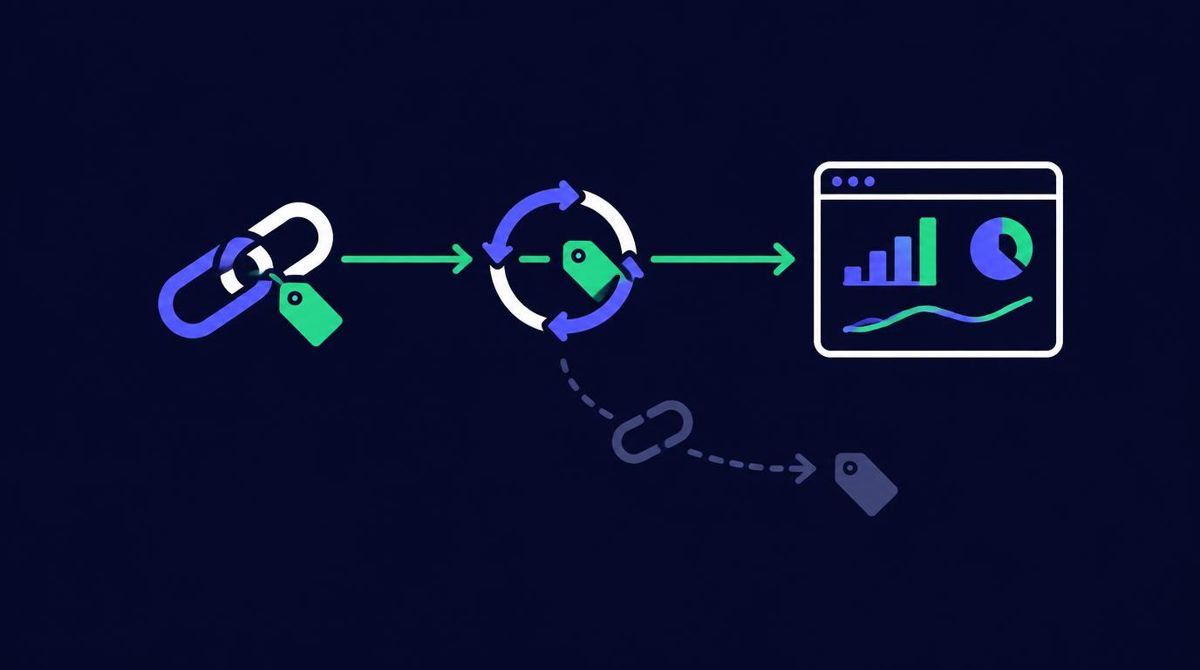
The best way to track direct website traffic is to shrink it to what is truly direct. Tag every link you control with UTM parameters, make sure redirects keep those parameters, serve every page over HTTPS, and route paid clicks through an independent click tracker. Then use GA4 landing page and engagement reports to check what remains.
Direct traffic is not a source you can track in the usual sense, because it is defined by the absence of source data. What you can track is how much of it there is, where it lands, and how it behaves. The real goal is to move misattributed visits back to the channels that actually sent them. If you need the background first, read what direct traffic means in Google Analytics.
Which GA4 reports show direct traffic?
Start with the reports you already have.
- Traffic acquisition (Reports, Acquisition). Filter the session default channel group to Direct to see sessions, engagement, and conversions.
- Landing page report. Add a filter for session source / medium equal to (direct) / (none). This is the single most useful view, because it shows where direct visits actually land.
- Explorations. Build a free form exploration with landing page, session source / medium, and date. Daily breakdowns make sudden changes easy to spot.
- User type. Compare new and returning users within direct. Genuine direct traffic leans toward returning visitors.
Look for direct sessions landing on deep pages or campaign pages. Those visitors almost never typed the URL.
How does UTM tagging fix misattributed traffic?
UTM parameters are tags added to the end of a URL, such as utm_source, utm_medium, and utm_campaign. GA4 reads them before it looks at the referrer, so a tagged link is attributed correctly even when the referrer is missing.
Practical rules:
- Tag every link you control in email campaigns, paid placements, PDFs, social bios, and partner sites.
- Use a consistent naming scheme, all lowercase, so sources group cleanly. For example,
utm_source=vendorname&utm_medium=solo&utm_campaign=october-test. - Never tag internal links on your own site. That resets the session source and breaks attribution.
- Keep a simple spreadsheet of tagged links so you can trace any campaign back to its URL.
Why do paid traffic and solo ad clicks often show up as direct?
This is one of the most common reasons direct traffic looks inflated, and it hits paid traffic buyers hardest.
Paid clicks rarely go straight from the ad to your page. They usually pass through one or more hops: an ad platform redirect, a vendor's click tracker, your own tracker, a link shortener, or a redirect on your domain. Each hop is a chance to lose source data.
The main ways it happens:
- The query string is dropped. A redirect sends the visitor to your page without the
?utm_...part. GA4 sees a clean URL and no campaign tags. - The referrer is removed. Many redirects and email clients do not pass a referrer. With no tags and no referrer, the visit becomes (direct) / (none).
- The final URL is a different page. A redirect may send everyone to the homepage instead of the tagged landing page, discarding the tags along the way.
- Email clients open links without a referrer. For solo ads, the click begins in an inbox, so referrer data is often missing from the start. Tags are the only reliable signal.
The result is that a vendor reports clicks, your tracker logs them, but GA4 shows a rise in direct homepage traffic instead of a tagged campaign.
What does this look like in a real case?
Here is an example from a site I looked at, described without naming the systems involved.
A site was recording several hundred visits a day as direct traffic to its homepage. On the surface it looked like strong brand demand. The visits had short engagement times and almost all landed on the homepage, which did not fit how genuine direct visitors behaved on that site.
Tracing the clicks showed they were paid clicks from a traffic campaign. The campaign links carried tracking parameters, but they passed through a redirect that sent visitors to the homepage and dropped the query string on the way. By the time GA4 saw the visit, there were no tags and no referrer, so every one of those paid clicks was labeled direct.
When the redirect was changed to forward the full URL, including its parameters, the "direct" traffic disappeared overnight. The visits had not gone anywhere. They now showed up under the correct campaign source, where they could be measured properly.
The lesson: a sudden, steady block of direct homepage traffic is worth investigating before you celebrate it.
How do you keep tracking parameters through redirects?
Check every hop in the path a click takes.
- Click your own campaign link in a private browser window and look at the final URL in the address bar. If the
utm_parameters are missing, something in the chain is stripping them. - Configure redirects to pass the query string. Most redirect tools and server rules have an option to append or preserve parameters. Turn it on.
- Point redirects at the right page, not a default homepage.
- Test after any change to trackers, shorteners, domains, or hosting. Broken parameter passing often starts with a small config change.
- Check GA4 Realtime while you click the test link, and confirm the session shows the source and medium you set.
Our guide on why tracking links matter in solo ads covers the vendor side of this.
Why use an independent click tracker as well?
Analytics only sees visits where the page loads and the tag fires. A click tracker logs each click before the redirect, so you have a record even when GA4 loses the source.
Compare the two every time you buy traffic:
- Tracker unique clicks for a campaign.
- GA4 sessions tagged with that campaign.
- Any unexplained rise in direct sessions on the same dates.
If tracker clicks are high, tagged GA4 sessions are low, and direct traffic rose at the same time, you have probably found a stripped redirect. The guide to tracking tools explains how GA4 and a click tracker work together, and solo ad click logs explains what to keep as evidence.
Disclosure: I own PulseTrack and PulseTraffic. PulseTrack is a click tracking tool and PulseTraffic is a solo ads traffic service. Treat this as the owner's description, and compare other trackers before choosing. Learn about PulseTrack or see PulseTraffic packages
What is a simple monthly direct traffic check?
Once a month, spend ten minutes on this:
- Note the direct share of sessions and compare it with last month.
- Review the top direct landing pages. Flag any deep or campaign page.
- Check engagement time for direct sessions against the site average.
- Look for days with sharp jumps or drops and match them to campaign or site changes.
- Click one tagged link from each active campaign and confirm the tags reach the page.
If you buy email traffic, add this check to your routine on every order. The buy solo ads traffic guide covers the full ordering and verification process, and the analytics dashboard setup shows how to keep these numbers in one place.
Want Verified Traffic Without the Guesswork?
PulseTraffic screens every seller, filters bot clicks in real time, and shows you verified buyer traffic labels before you spend a dollar.